Published: October 12, 2026. Updated: October 13, 2026.
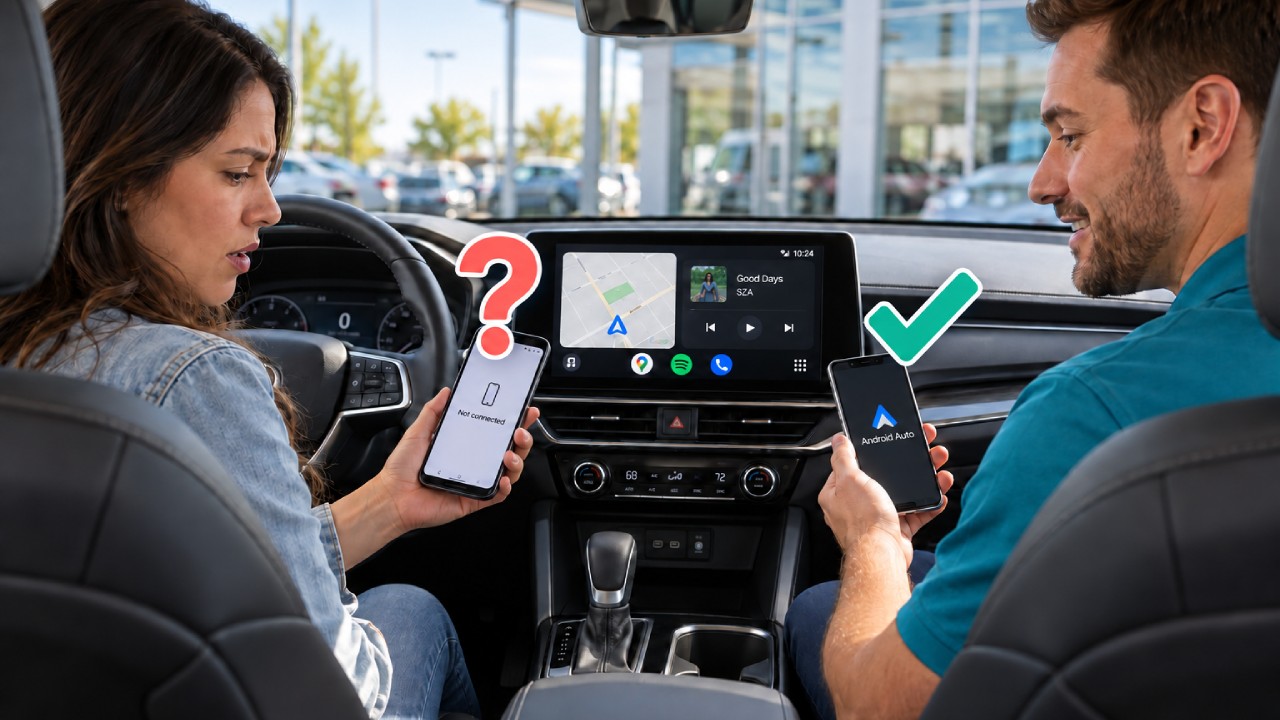
If Android Auto opens with your phone but refuses to connect with the buyer’s, you have a useful comparison, not a diagnosis. Before suggesting a replacement handset or sending the vehicle to service, establish what failed and repeat the test without changing everything at once.
The buyer wants to keep using their phone. “It works on mine” does not answer their concern. Your job is to distinguish an unsupported combination from a connection problem, then identify what needs further diagnosis.
1. Identify the function that actually failed
Ask: “Are calls failing, or are your phone’s apps not appearing on the dashboard?” Have the buyer reproduce the complaint. Record the connection method and exact error message, including whether Android Auto never opens or disconnects after opening.
Keep Bluetooth calling separate from Android Auto projection. In its connection guidance, Chevrolet distinguishes vehicles that accept wireless Android Auto from those requiring USB. A successful Bluetooth call therefore does not establish that Android Auto works through either method.
Write the complaint narrowly: “Bluetooth calls work; Android Auto does not launch through USB.” That gives the next person something to reproduce instead of another vague “phone won’t connect” job.
2. Check whether the phone and car support the connection
Ask the buyer to show you the installed Android version, not just the handset’s brand. Google’s Android update guidance directs users to Settings, then About phone and Android version. Record the phone model alongside that version.
As of October 13, 2026, Google’s published Android Auto requirements specify the following baselines. Google requires an active data plan for either method and excludes devices using Android Go edition.
| Connection | Phone baseline | Vehicle or receiver requirement |
|---|---|---|
| USB | Android 11 or newer | Documented Android Auto support through USB |
| Wireless | Android 11 or newer, plus 5 GHz Wi-Fi capability | A compatible receiver with documented wireless Android Auto support |
If you encounter guidance citing Android 9, check it against Google’s current English requirements page. Google’s English troubleshooting page now also specifies Android 11. Use the current requirements rather than an older compatibility sheet.
Meeting the minimum lets you proceed with testing; it does not prove the connection works. Next, consult the manual for the infotainment system actually installed. Identify an aftermarket receiver by its model number rather than assuming the vehicle’s original equipment remains fitted.
Confirm wired and wireless support separately. If the phone or receiver does not support the proposed method, repeated pairing is the wrong next step.
3. Test the supported method with a controlled setup
Keep the vehicle parked and power up its infotainment system. Ask permission before pairing, and let the buyer unlock the phone and approve its prompts. Google’s setup instructions call for a parked vehicle, mobile reception and completion of the prompts on the devices.
For USB, locate the manual’s designated data port. If the buyer used another port, move the existing cable to the correct one and retry before changing the cable. A charging phone does not prove Android Auto works; you need Android Auto to launch.
Then substitute a known-good data cable. Google’s troubleshooting guidance recommends keeping the cable below three feet and avoiding hubs or extensions. For a wired setup that previously worked, Google identifies cable replacement as a likely fix, so give this test priority over resets.
A cable earns “known-good” status by successfully running Android Auto, not by charging a phone. Keep a proven cable available for these comparisons.
For wireless setup, Google recommends enabling Bluetooth and Wi-Fi, with Location Services switched on during setup. Follow the vehicle’s pairing procedure and complete the Android Auto prompts; do not stop at the Bluetooth confirmation.
If an add-on wireless adapter is present, set it aside and test the receiver’s documented native method. Otherwise, you are investigating an additional device before establishing whether the underlying connection works.
Next, check whether Android Auto is enabled in the receiver’s settings, as Google’s troubleshooting guidance recommends. If it is off, enable it. Retry with the same phone and connection, then record the setting and result.
If the connection still fails, separately restart the infotainment system using the manufacturer’s procedure. Google also recommends this test. Retry without changing the phone or connection, then record the result so you know whether the restart made a difference.
4. Substitute one component and interpret the result
Keep the port, cable and connection method unchanged while substituting a phone already proven on that method. If different connectors require another cable, verify that cable separately before drawing conclusions.
Subaru’s diagnostic guidance uses phone and cable comparisons and, where needed, another vehicle with matching infotainment. Use these results to choose the next test:
| Result | Next direction | Limit of the finding |
|---|---|---|
| Buyer connects after cable replacement | Retest with the replacement. | The cable or its connection may be the problem. |
| Staff phone connects; buyer’s does not | Check buyer’s software and setup; compare with equivalent infotainment. | The result does not prove the buyer’s phone is incompatible. |
| Neither connects using a proven cable | After the settings check and restart, pursue vehicle-side diagnosis. | The head unit is not yet proven faulty. |
| Wired connects; wireless fails | Confirm both the phone and receiver support wireless Android Auto, including 5 GHz Wi-Fi on the phone. If they do, check pairing and setup. | Wired success confirms neither wireless compatibility nor a wireless fault. |
5. Match the remedy to the finding
If the phone fails the operating-system requirement, check whether its manufacturer offers a supported Android update. Google’s update guidance notes that older hardware cannot necessarily run newer Android releases. Updating the Android Auto app alone does not satisfy an Android operating-system requirement.
If no supported update exists, discuss a compatible handset or separately tested Bluetooth calling. Do not book a vehicle repair as the cure for unsupported phone software. Where both devices support USB but wireless is unsupported, demonstrate wired operation as the alternative.
For a supported phone, complete any prompted Android Auto update with the buyer’s permission and retest. If the failure persists with a supported comparison phone and a proven connection after the settings check and restart, escalate to vehicle-side diagnosis rather than recommending a head unit from the delivery lane.
Give service the exact symptom, handset model, Android version and Android Auto version. Include the receiver identification, cable and port tested, plus the result of each substitution and the separate settings and restart tests. Those details let the technician continue your investigation instead of restarting it.
Change one thing at a time
Do not update the phone, restart the receiver and replace the cable between the same two attempts. Even if the next attempt succeeds, you will not know which change mattered. Make a change, retry, then record the result.
Avoid blanket resets as a delivery shortcut. If the manufacturer’s procedure calls for deleting a pairing, explain the change and obtain permission first. A factory reset of the buyer’s phone is not an appropriate first-line demonstration test.
Finish with the buyer’s phone, not yours
Before closing the concern, have the buyer reconnect their own phone using the agreed method and repeat the function that originally failed. If the complaint involved navigation or audio, verify that function while parked rather than treating the appearance of an icon as completion.
For intermittent complaints, record the test conditions and whether the fault returned. A brief successful launch does not resolve a complaint about later disconnections. Remove the staff phone’s pairing after comparison testing. Finish by testing the buyer’s phone again.