Connecting with Facebook
To connect to Facebook, click the Connect button. Click on the Facebook icon, and you will be redirected to its official login page. Follow the on-screen instructions to complete the connection. In some cases Facebook may ask you to claim the page. This is normal. Just click on the Claim link.
Information We Store
Facebook uses a secure connection system. Upon successful connection, Facebook issues tokens that grant limited access, including an access-token, page-access-token, and your Facebook page ID. Only these three pieces of information are securely stored in our database. We do not retrieve or store any other details from your Facebook profile.
Disconnecting Facebook
Click  icon to remove the connection and all associated data from our system.
Troubleshooting Facebook Connectivity
Sometimes Dealersip users face problems connecting to Facebook. This usually happens when the user deletes the connection from the Integrations page inside Dealersip, but the apCRM app remains in the Connected Apps section in Meta Business Suite. To resolve this issue, you need to manually remove apCRM from Meta Business Suite.
Steps to Remove apCRM from Meta Business Suit
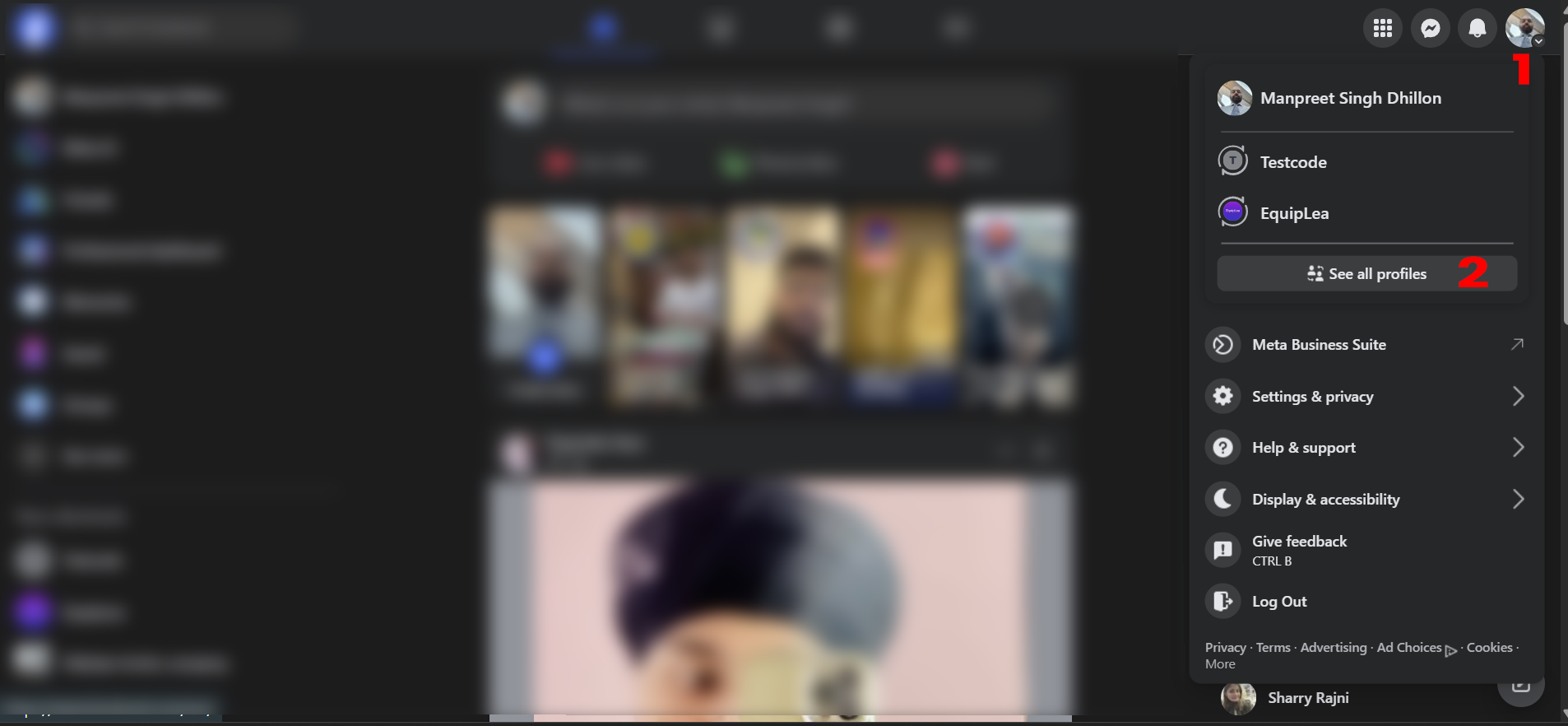
- Log in to your Facebook account and click on your profile icon in the top-right corner, marked as 1 in the image below. From the dropdown, select the business profile that you are using with apCRM of Dealersip. If you do not see the profile in the drop down then click on "See all Profiles", marked as 2 in the following image.
If you chose "See all Profiles", then you will see list of all available profiles as shown below:.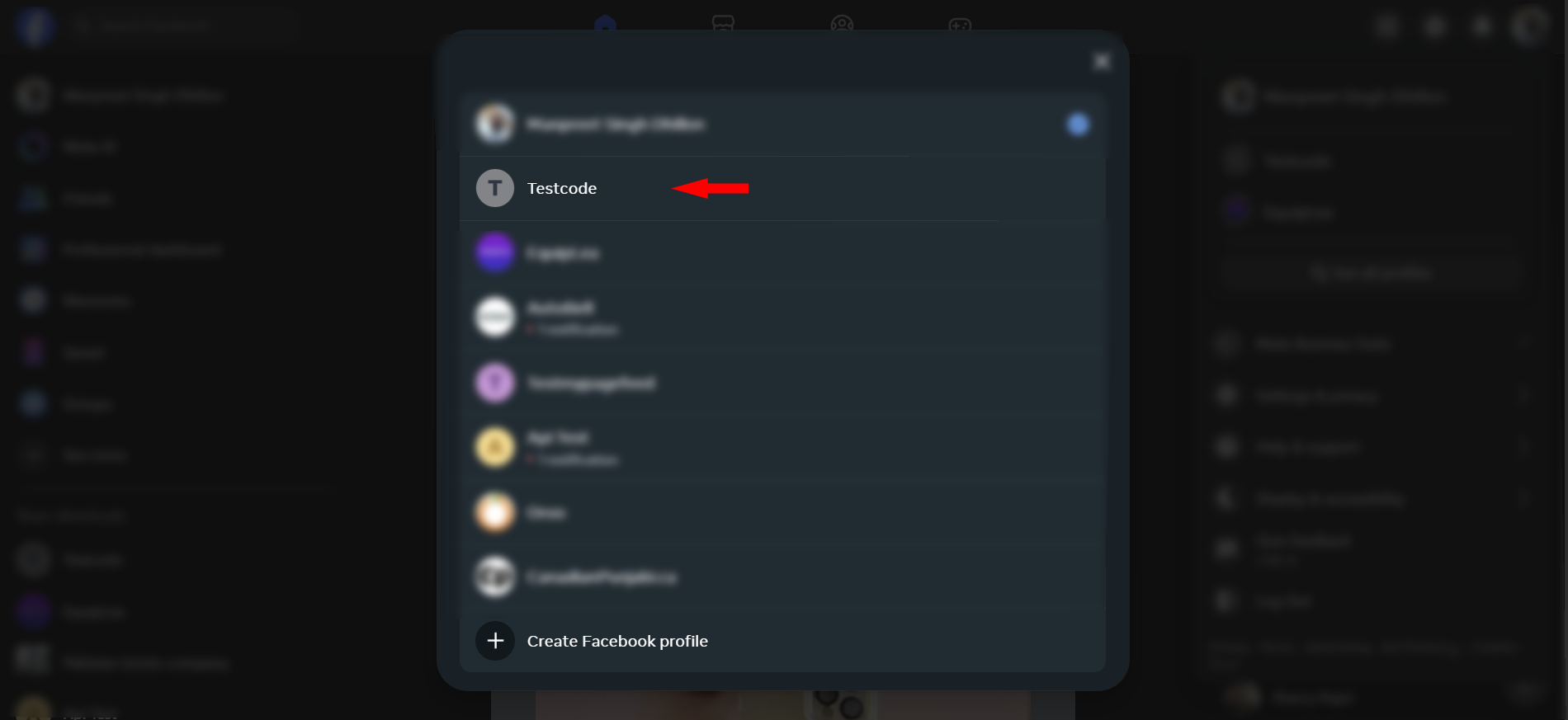
Choose the profile you are using with Dealersip-apCRM and continue with the next steps. - Once you are in the selected profile, in the left side menu, click See more to expand settings.

This will expand settings and will show more settings. Click on Meta Business Suite to open the business settings.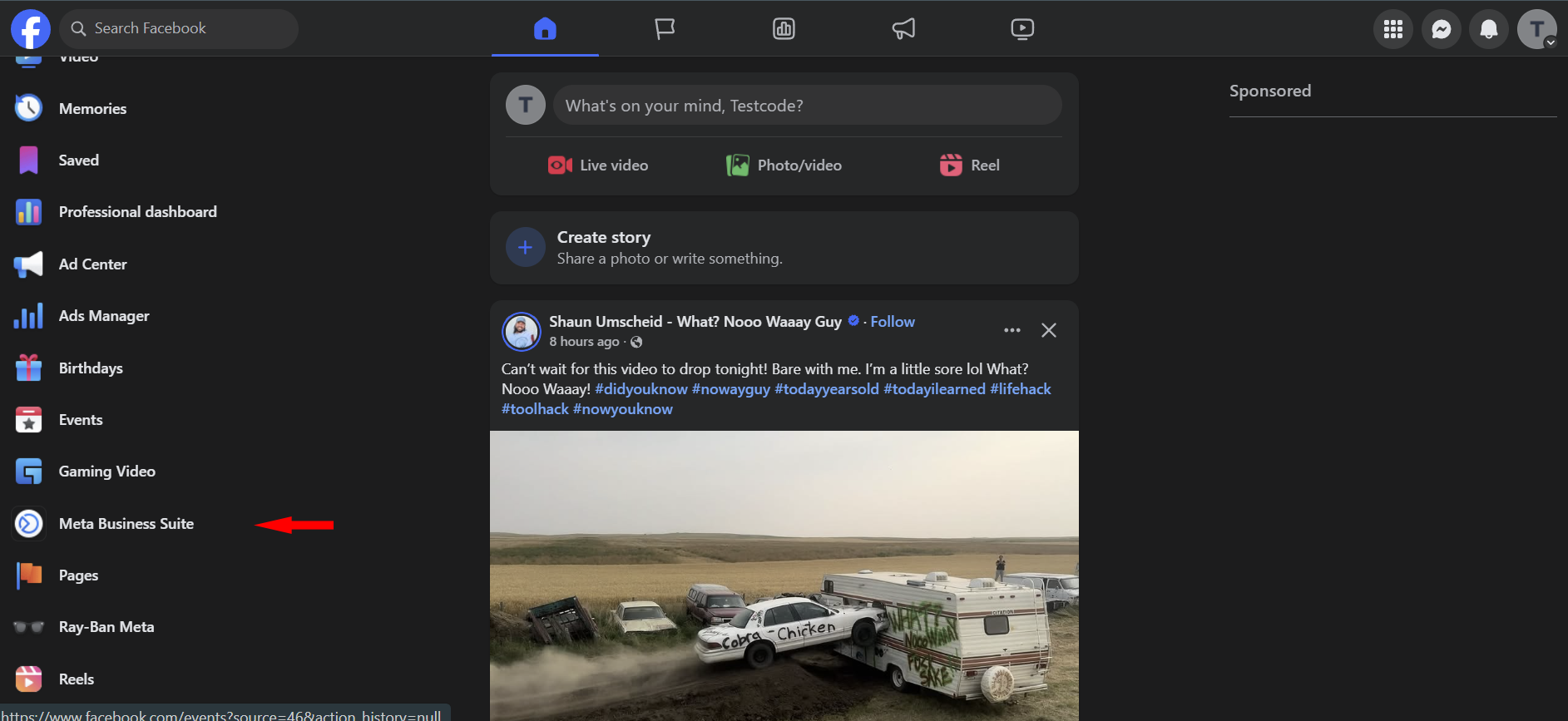
- In Meta Business Suite, go to the bottom left corner and click Settings.
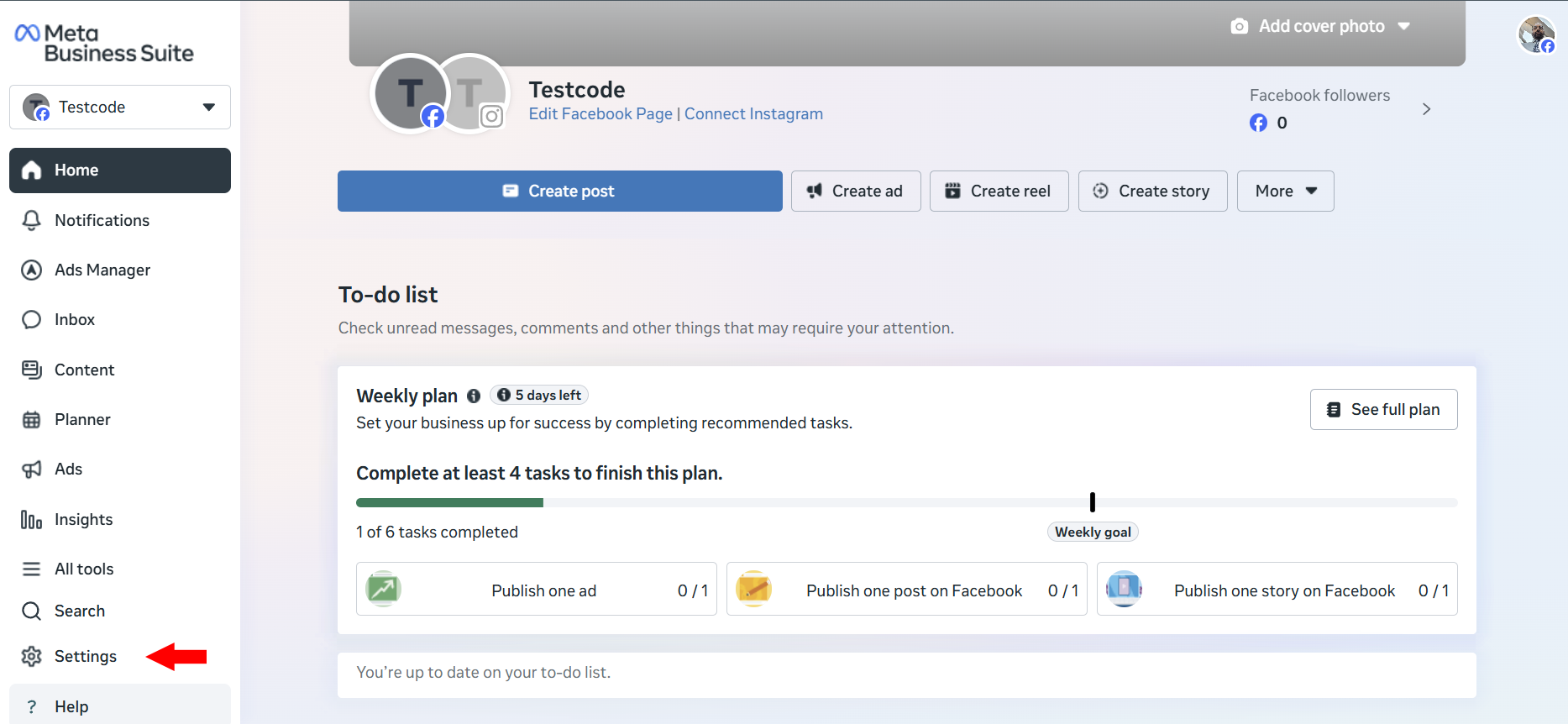
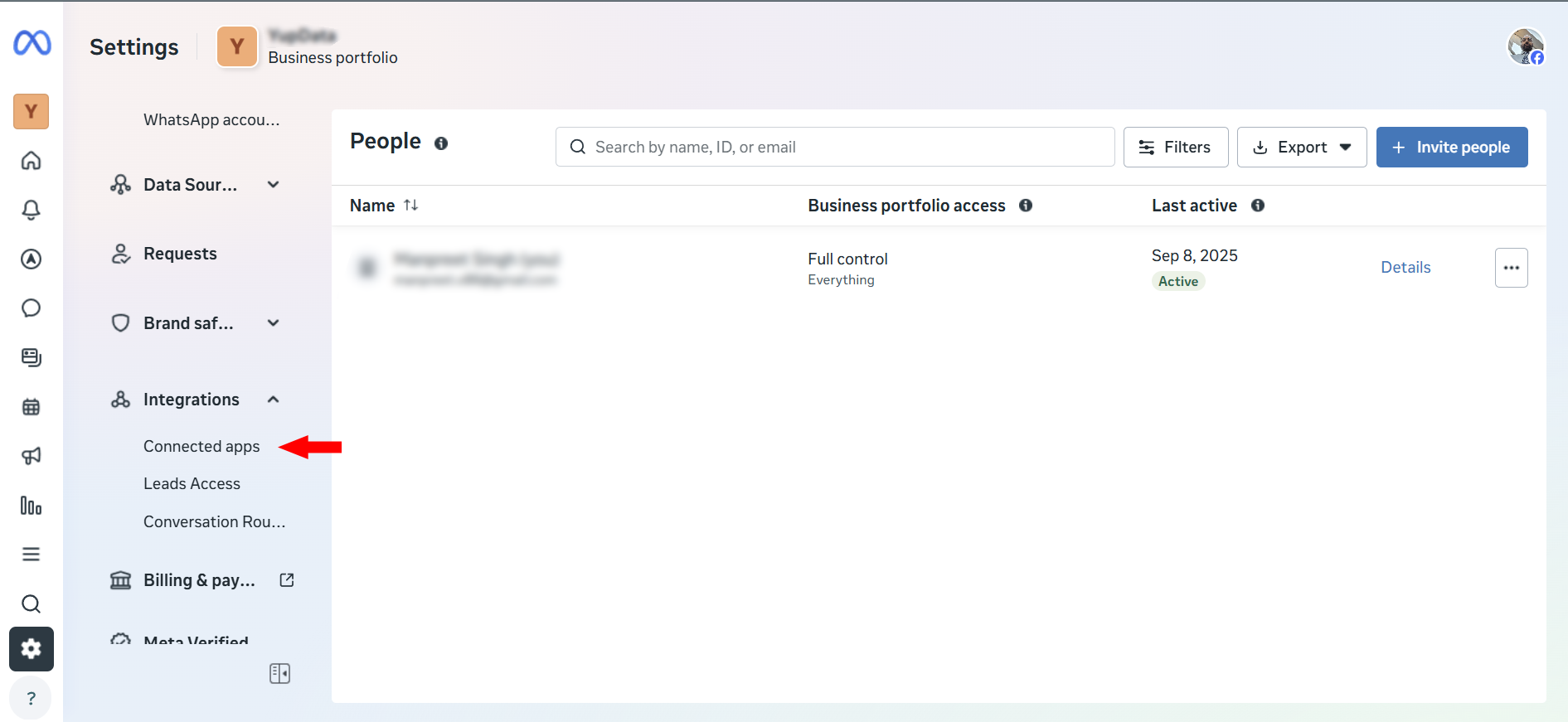
- In the settings panel, expand Integrations and then click on Connected Apps.
- Locate apCRM in the list of connected apps, select it, and remove it.
