Why is Dealersip software not displaying properly after a browser update?
If the Dealersip login page or other screens look scattered after a browser update, it usually means the browser is using an old cached CSS or JavaScript file. Follow the steps below in order until the page renders normally. In such cases you see Dealersip loaded as shown in below image:
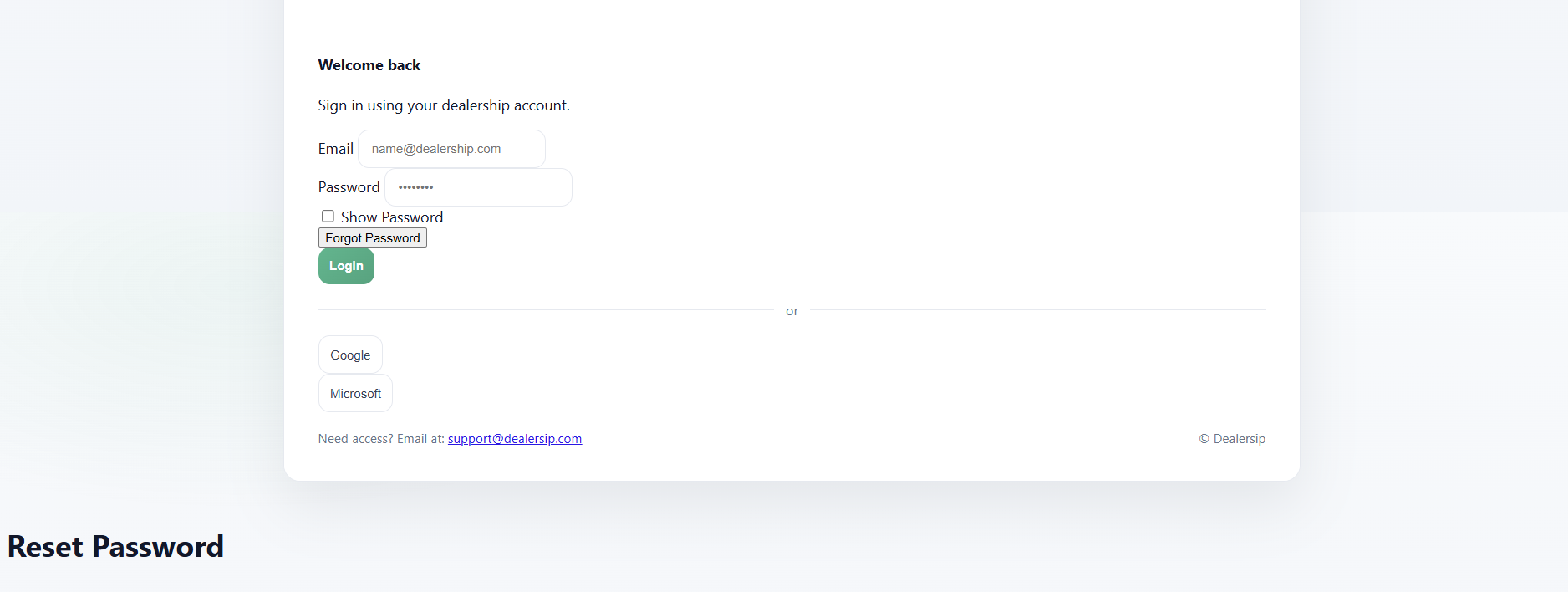
To fix this follow following steps.
Step 1: Do a hard refresh (most common fix)
Following are keyboard shortcuts for different browsers:
- Chrome (Windows): Press Ctrl + Shift + R (or Ctrl + F5).
- Chrome (Mac): Press Cmd + Shift + R.
- Microsoft Edge (Windows): Press Ctrl + Shift + R.
- Firefox (Windows): Press Ctrl + Shift + R (or Ctrl + F5).
- Firefox (Mac): Press Cmd + Shift + R.
- Safari (Mac): Press Cmd + Option + R.
If the layout becomes normal after this, the issue was cached files.
Step 2: Clear cached images and files for the browser
- Open the browser menu.
- Go to Settings.
- Search for Clear browsing data.
- Select Cached images and files (you usually do not need to select passwords or autofill).
- Time range: choose All time (or at least Last 7 days).
- Click Clear data.
- Close the browser completely and open Dealersip again.
Step 3: Clear site data only for Dealersip (recommended if you do not want to clear full browser cache)
- Open the Dealersip login page.
- Click the lock icon near the address bar.
- Open Site settings.
- Click Clear data (or remove data for that site).
- Reload the page.
Note: This can sign you out and remove site-specific saved settings, but it will not remove your browser passwords.
Step 4: Try Incognito or InPrivate to confirm it is a cache issue
- Chrome: Press Ctrl + Shift + N.
- Edge: Press Ctrl + Shift + N.
- Firefox: Press Ctrl + Shift + P.
- Open the Dealersip login page in the private window.
If the page looks normal in a private window, the issue is almost always cached files or an extension.
Step 5: Disable browser extensions that can break scripts
- Temporarily disable extensions such as ad blockers, script blockers, privacy blockers, and antivirus web shields.
- Reload the Dealersip page.
- If it fixes the issue, re-enable extensions one by one to find the one causing the problem.
Step 6: Check zoom and display scaling (quick visual fix)
- Reset zoom to 100%: Ctrl + 0 (Windows) or Cmd + 0 (Mac).
- If your Windows display scaling is very high, try setting it back to a standard value (for example 100% or 125%) and reload.
Step 7: If your site uses offline caching, refresh the stored files
If the system is using a service worker or offline caching, your browser might keep old scripts even after a refresh. Do this only if the steps above do not work:
- Press F12 to open Developer Tools.
- Go to the Application tab.
- Click Clear storage.
- Select site storage items and click Clear site data.
- Reload the page.
When to contact support
If the issue still happens after completing Steps 1 to 5, send a screenshot and tell us your browser name and version (Chrome, Edge, Firefox, Safari). For support contact your account manager.